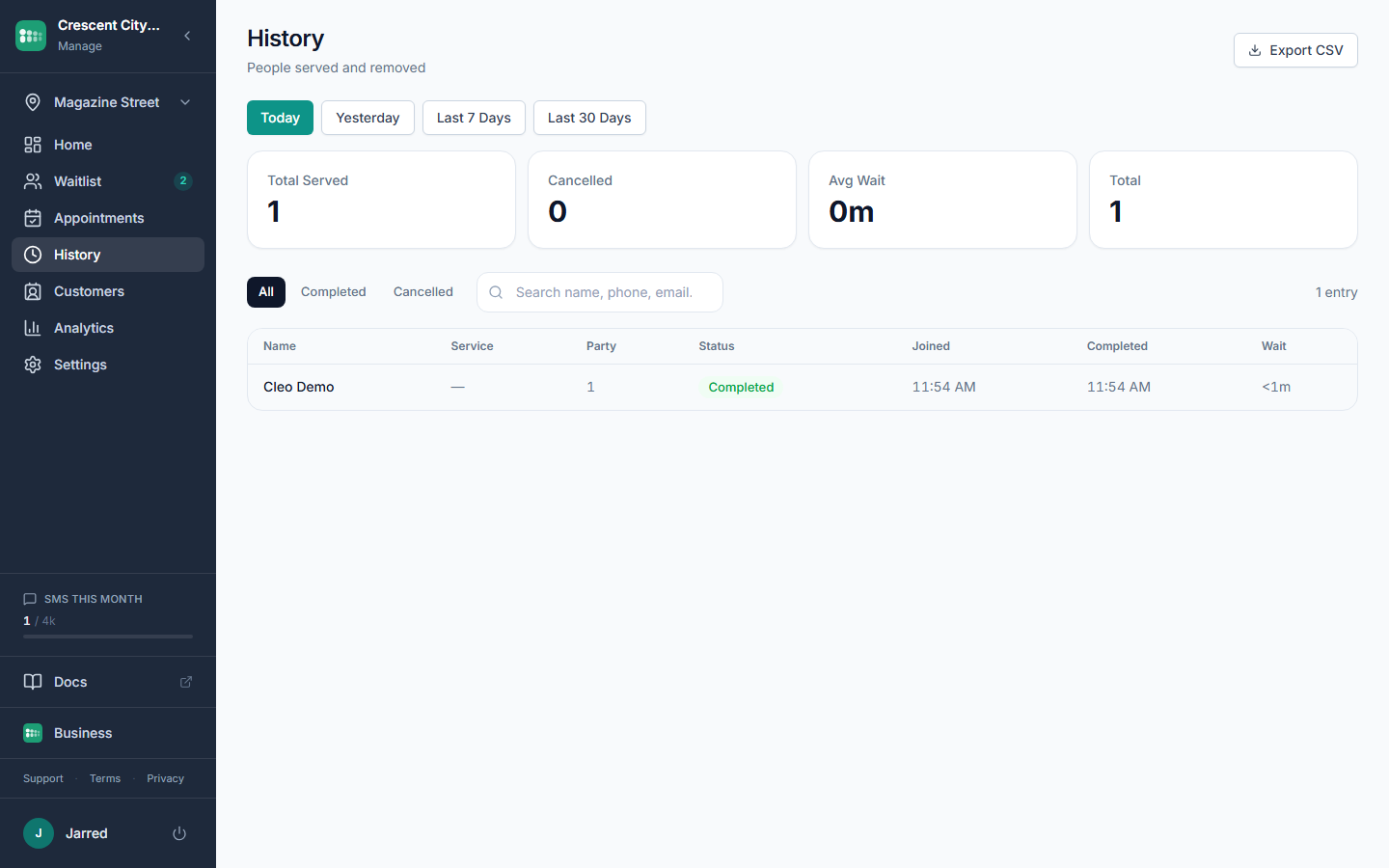
The History page lists every entry that has been completed or cancelled. Use it for end-of-day reporting, to look up a guest from earlier in the week, or to pull a spreadsheet for payroll and tips.
On the Free plan, History shows the last 7 days. Older visits are saved and unlock when you upgrade to any paid plan.
Filter what you see
- Choose a Date range: Today, Yesterday, Last 7 Days, or Last 30 Days.
- Choose a Status: All, Completed, or Cancelled.
- The table refreshes automatically. Each row shows completion date, name, status, wait duration, and service duration.
Open an entry
Click any row to open the detail drawer. You will see the customer's info, any custom field answers they gave, and their notes. This is the fastest way to answer "what did we talk about last time?" when a guest comes back.
Export to CSV
CSV exports are included on the Business plan.
- Set the filters to match what you want in the file.
- Click Export CSV in the top right.
- Open the download in Excel, Numbers, or Google Sheets. Columns are Name, Service, Party, Status, Joined, Completed, Wait (minutes), and Date.
For trends across longer stretches of time (day-over-day, service mix, cancellation rate), use Analytics instead. History is for individual entries, Analytics is for the numbers.
Common problems
- An entry is missing. Check the Status filter. Cancelled entries are hidden when you filter to Completed, and vice versa.
- Export only has a few rows. The CSV honors whatever filters are set. Switch Date range to Last 30 Days and Status to All, then export again.
- I need data older than 30 days. The built-in date ranges go back 30 days. For longer windows, export at the end of each month and keep the files.
- Older days show an upgrade note. The Free plan shows the last 7 days of history. Your data is still saved; upgrading unlocks it.
- Wait and service times look off. Wait time is from join to Serve, service time is from Serve to Complete. If staff forgets to click Complete, service time will be inflated.