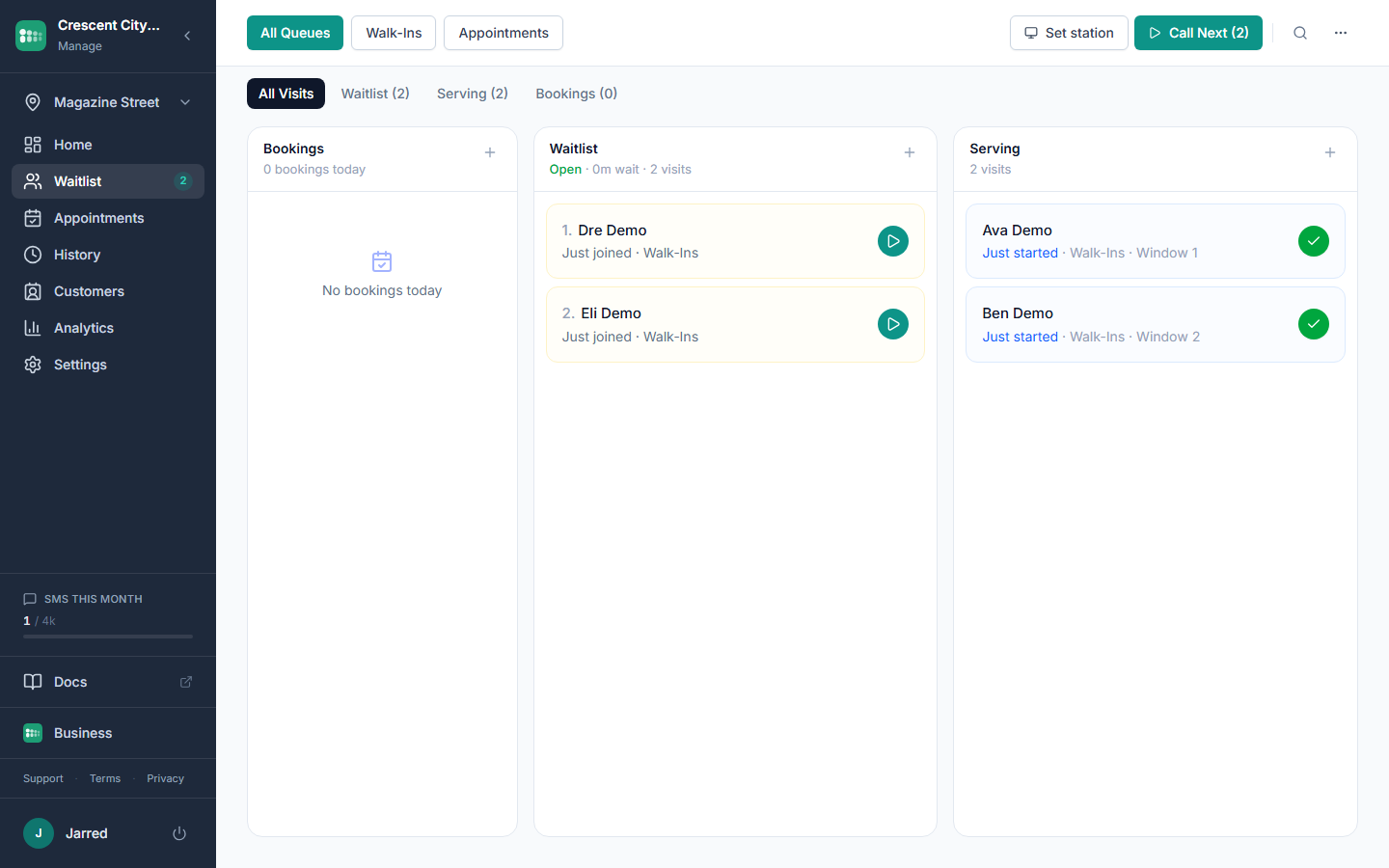
The Waitlist page is where you run the line in real time. Pick a queue at the top, then use the filter tabs (All, Waitlist, Serving, Bookings) and search bar to find anyone quickly.
Call the next person
Call Next always calls the person who has waited longest across the queues you're viewing, marks them as serving, and sends their "it's your turn" notification.
It's built for multiple staff working at once: if three coworkers click Call Next at the same moment, each gets a different person, never the same one twice. Click Set station once per device to give yourself a label like "Window 3" or "Chair 2"; from then on, every customer you call shows that station on the waiting room display and on the Serving column, so everyone knows who is going where.
Add someone to the line
Use this when a guest walks up to the counter instead of joining from their phone.
- Click the + at the top of the Waitlist column.
- Fill in First Name (required), plus Last Name, Email, Phone, Party Size, and Service as needed.
- Answer any custom fields your business has configured.
- Click Save. The entry appears at the bottom of the list with a position number.
Work the line
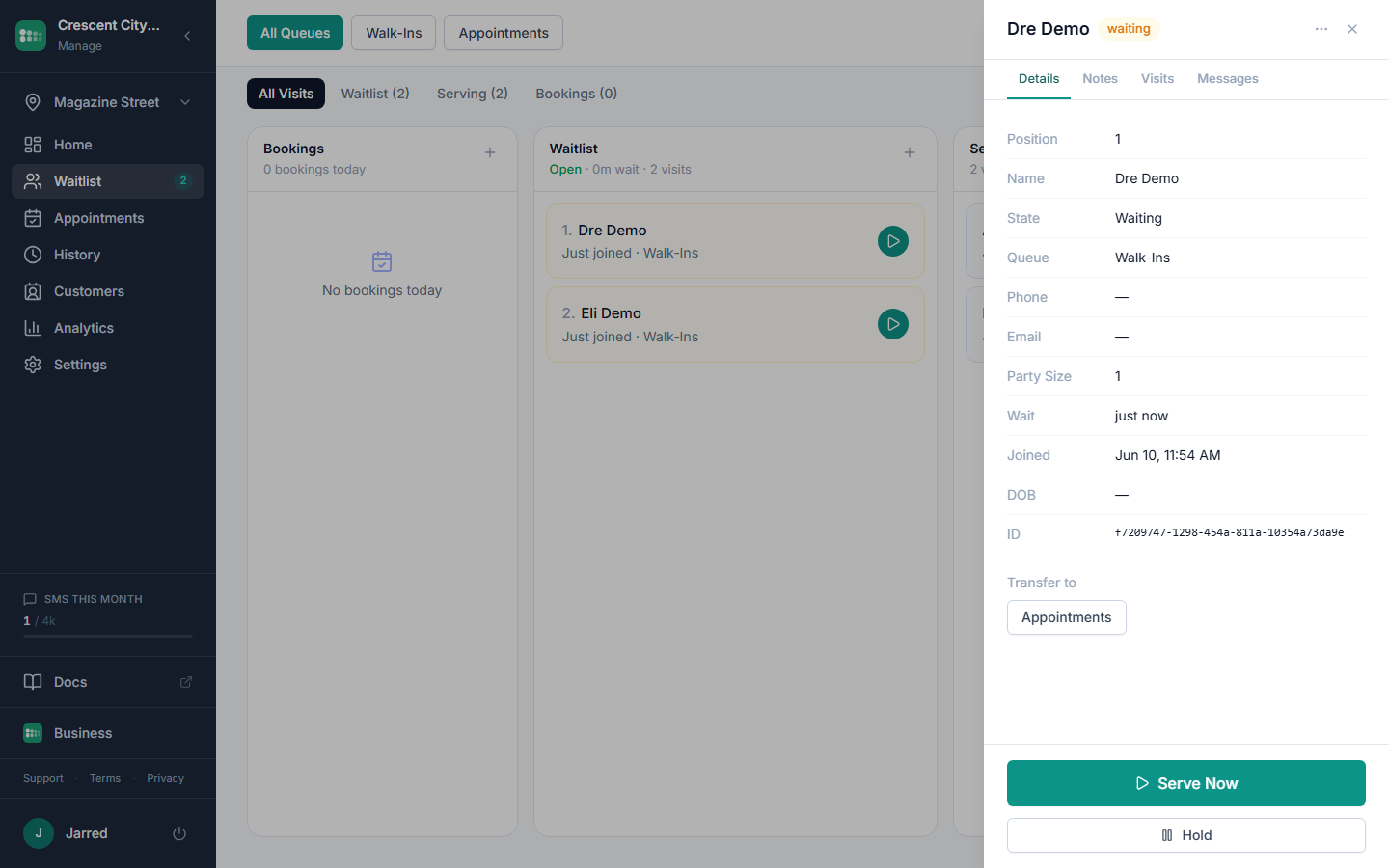
Each entry shows the position, name, status badge, party size, phone, service, and wait time. The action buttons on the row cover every common move:
- Serve marks the entry as serving and sends the "it's your turn" notification. Use Unserve if you clicked it by accident.
- Complete closes out a serving entry and moves it to History.
- Hold pauses an entry (the guest stepped away). Unhold returns them to the waiting list.
- Transfer opens a modal to move the entry to a different queue.
- Notify sends a fresh SMS or email using your notification templates.
- Remove deletes the entry. Use this for mistakes, not for guests who leave on their own.
The More menu adds View details, Edit custom fields, Send message, and Copy contact. You can reorder entries in the list when you need to bump someone up or down.
Stay on top of new arrivals
The page polls every 10 seconds and pauses when the browser tab is hidden. Toggle the bell icon to play a short beep whenever a new entry joins, so you can keep the tab in the background.
Common problems
- Clicked Serve on the wrong person. Click Unserve on the same row to put them back in waiting.
- Guest stepped out. Use Hold instead of Remove so you can bring them back without losing their info.
- No beep on new entries. Make sure the bell icon is enabled and your browser tab has been clicked at least once (browsers block audio until the page is interacted with).
- Someone joined the wrong queue. Use Transfer to move them rather than removing and re-adding.