A QR code queue system your customers can join in seconds
One printed code at the door. A customer points their camera at it, fills in a short form in their browser, and lands on a live page with their place in line. No app to install and nothing for staff to hand out.
No credit card required. Free plan that stays free.
How a QR code queue works
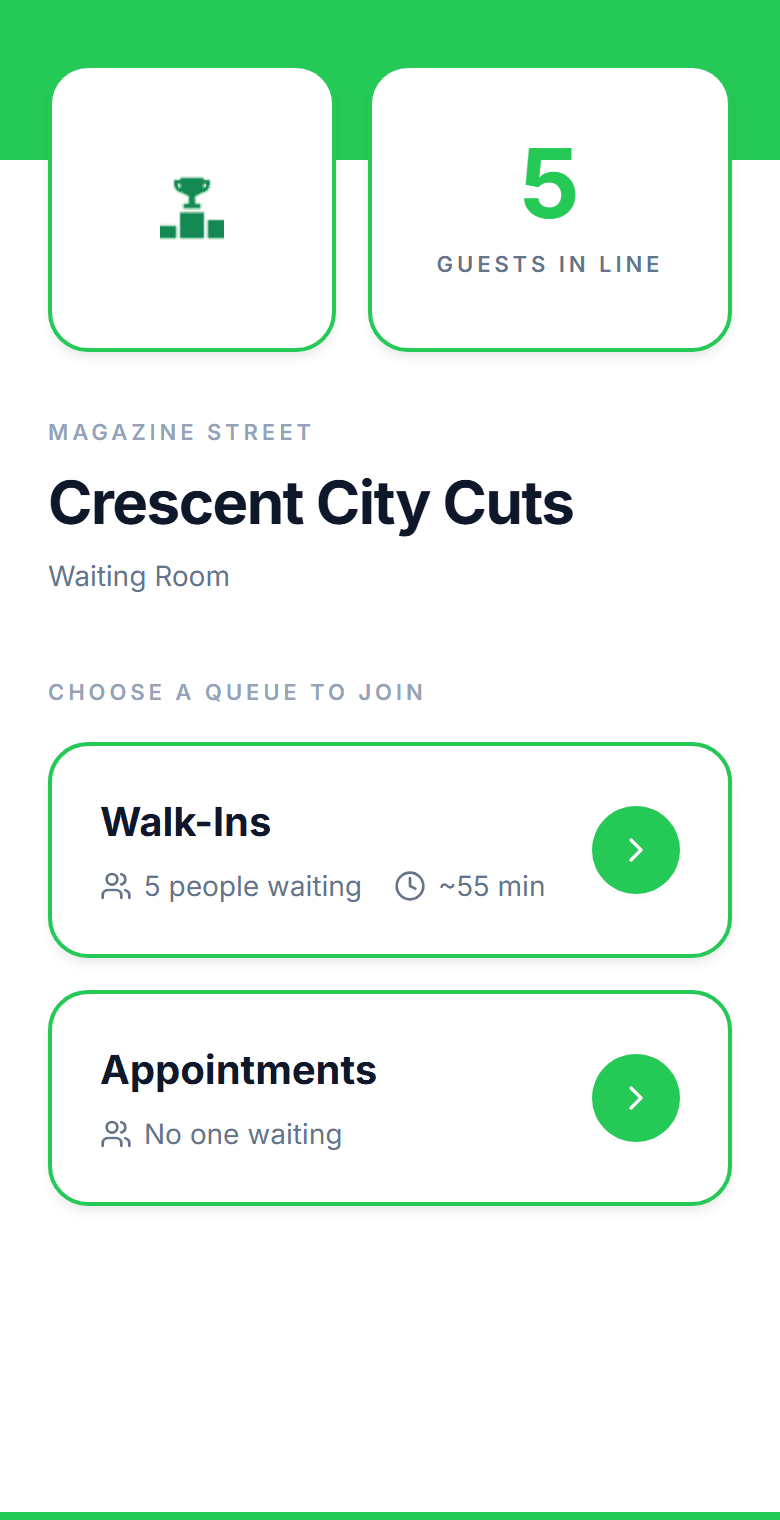
A QR code queue system turns a printed code into the entrance to your line. The code opens your check-in page in the customer's phone browser. They pick a queue if you run several, enter a name and mobile number, and get a status page showing their position and estimated wait. Staff see the entry on the dashboard the moment it is submitted and call customers in order.
- The code is generated for your location and never changes, so you print it once
- The same page is reachable by link from your website, Google Business Profile, or social bios
- Custom fields let the form ask for a party size, a service, a stylist, or anything else you need
- A tablet kiosk at the door covers customers who would rather not use their phone
- Every join lands in the same list, in order, whichever route it came through
What the code connects to
One code per location
The code points at the location's check-in page. Add a second queue later and the same code still works; the customer just picks which line to join.
Works as a plain link too
The code is a link. Put it in your Google Business Profile, your Instagram bio, or an email, and customers join before they arrive.
A join form you control
Turn intake fields on or off and mark them required: first and last name, phone, email, party size, date of birth. Keep it to what a text alert needs.
Custom fields on paid plans
Add a text, number, dropdown, date, or yes/no field to the form: preferred stylist, vehicle plate, order number. The answer travels with the entry to the dashboard.
Kiosk fallback
A tablet at the door runs the same form full-screen for customers who do not scan. It resets after a minute of inactivity.
Website widget
Embed the join form on your own site with one script tag, so a customer reading your menu or price list can get in line from there.
From scan to served
Four steps for the customer, one button for staff.
- 1
The customer scans the code with their phone camera; the check-in page opens in the browser
- 2
They choose a queue and a service if you offer several, then enter a name and mobile number
- 3
Their status page opens with a position and an estimate, and a confirmation text arrives with the link
- 4
Staff call the next customer from the dashboard; the customer gets a text and walks up
QR code queue vs take-a-number vs paper sign-in
Three ways to take a name at the door. The rows are what the customer and the staff get out of each.
| QR code queue | Take-a-number ticket | Paper sign-in | |
|---|---|---|---|
| How the customer joins | Scans a code on their phone | Pulls a ticket | Writes on a clipboard |
| Details captured | Name, phone, party size, custom fields | A number | Whatever is legible |
| Customer sees their position | On their phone, live | On the wall, if they stay | No |
| Customer can leave | Yes, and gets a text | Only within sight of the board | No |
| Staff view | Dashboard with call next, hold, reorder | Next number | The clipboard |
| Record kept | Every visit with wait and outcome | None | The sheet, until it is binned |
| Hardware | A printed code; tablet and TV optional | Dispenser and display | Clipboard |
Getting your QR code
The code exists as soon as the location does. The rest is where to put it.
- 1
Create the location and a queue
The check-in page and its QR code are generated for the location. One queue is enough to start. Create your first queue
- 2
Download the code from the location settings
Copy the join link or download the QR image from the self check-in settings for the location. Join link and QR code
- 3
Print a scan-to-join sign
The free sign generator lays the code out on a letter or A4 page with your business name and a one-line instruction. Make a printable sign
- 4
Put the code where people stop
The door, the host stand, the counter, table tents, and the window for customers who see a full shop from outside. Add the link to your Google Business Profile so it works before they arrive. Where the link works
- 5
Test it with your own phone
Scan the code, join, and watch the entry appear on the dashboard. Call yourself to see the text and the status page change. Managing the waitlist
QR code queues by business type
Restaurants
The code lives at the host stand and on the window. Guests join with a party size, walk the block, and get a text when the table is ready.
Barbershops
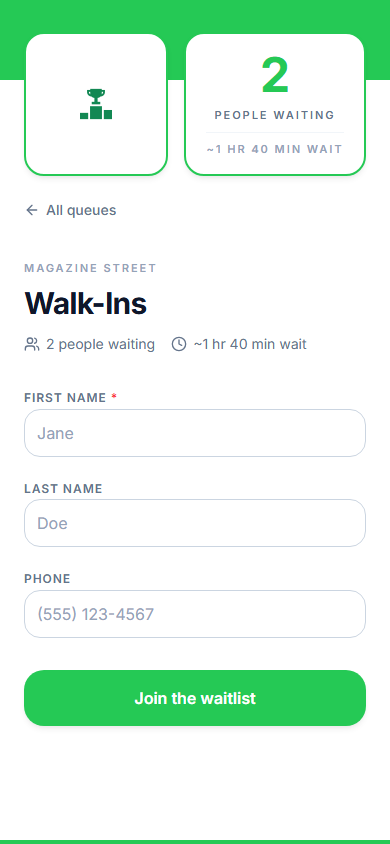
A code on the door lets someone who sees a full shop join from the sidewalk, pick a service, and come back when the chair is free.
Salons
Walk-ins scan, choose a service and a stylist, and wait for the right chair without sitting by the door.
Events
A code on the signage or the badge puts attendees in line for registration, a full session, or a busy booth while they see the rest of the floor.
Retail counters
A code at the service desk or pickup counter lets shoppers keep browsing until their name comes up on the display.
Clinics and offices
A code at reception and a kiosk beside it, with a now-serving screen in the waiting room. Name and phone only; nothing clinical is asked.
Why a code beats a clipboard
The line forms on phones
Nobody has to stand at the door to hold a place. The entrance stays clear and the customer stays comfortable.
Every name is spelled right
The customer types their own details, so the text goes to the right number and the greeting uses the right name.
Staff stop taking names
The form does the intake. The front desk spends the time serving, and adds only the customers who did not scan.
The same code keeps working
Change queues, services, fields, or hours and the printed code is still right. Print it once.
Frequently asked questions
No. The code points at your location's check-in page, and that address stays the same when you add queues, change services, or edit the form. Print it once and replace it only if it gets damaged.
Yes. When a location has more than one queue, the check-in page shows a queue picker before the form. Customers choose the line they want and the entry goes to that queue.
Most phones read codes from the camera directly. For the rest, the same page is a plain link you can print under the code, share by text, or put in your Google Business Profile, and staff can add the customer from the dashboard or point them to the kiosk.
Yes. The customer touches only their own phone. The code can be printed, put on a screen, or shared as a link; nothing is handed over and no shared device is required unless you choose to add a kiosk.
The customer's phone uses its own data connection, so your wifi does not matter to them. The dashboard needs a connection on the staff device; if that drops, entries keep arriving and appear when it reconnects.
Where people stop and decide: the door, the host stand or counter, table tents, and the front window for customers who see a full shop from outside. Off-site, add the same link to your Google Business Profile, your website, and your social bios so people can join before they arrive.
Built for your industry
Simple pricing. Start free, upgrade when you need more.
Start free and upgrade when you need texts, appointments, or more locations. Every new account includes a full Business trial.
Start free