Customers join your queue through one of three surfaces: an embeddable widget on your website, a kiosk running on a tablet at your counter, or a QR code that opens the self check-in page on the customer's own phone. Pick whichever fits how people walk into your business.
Get the QR code
- In the admin sidebar, open Settings, then Self Check-in.
- Make sure the master Enabled toggle is on for this location.
- The page displays the Check-in URL (
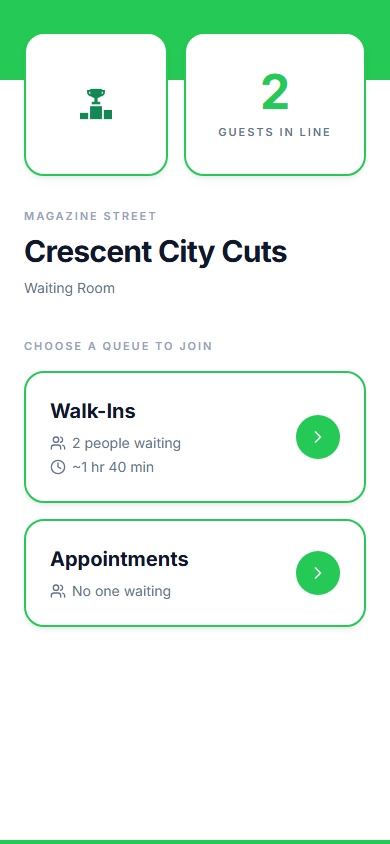
/checkin/:locationId) and a QR code. Use the copy button next to the URL, or right-click the QR image to save it. - Print the QR and put it on the door, counter, or a table tent. Scanning it opens the check-in page in the customer's browser, where they join, watch their place in line, and can leave the queue if their plans change.
For a ready-to-print sign with your code on it, use the scan-to-join sign generator. If you want the background on why the code works so well at the door, read how a QR code queue system fits different businesses.
Set up the tablet kiosk
- On the tablet you want at the counter, open
/kiosk/:locationId(same location id as in your Check-in URL). - Lock the browser into full-screen or kiosk mode.
- If you want the kiosk to default to one queue, add
?queue=QUEUE_IDto the URL. - The kiosk shows the fields you enabled and a Join button, and resets after each submission.
Embed the widget on your site
- Copy your queue ID from Settings, then Queues.
- Paste the widget script into your site, setting
data-queue-idto that ID. - The widget shows a floating button in the bottom-right that opens a join panel without leaving your page.
Common problems
- QR code leads to a disabled page. The master Enabled toggle on Self Check-in is off, or the location's waitlist hours are closed.
- Kiosk shows the wrong queue picker. Add
?queue=QUEUE_IDto lock it to one queue, or adjust which queues belong to this location. - Customers cannot find the queue name on the kiosk. Set Queue Display Name on the Self Check-in page to whatever customers will recognize.
- Widget not appearing on the website. Check that
data-queue-idis correct, the script loaded, and your site's Content Security Policy allows the widget host. - Want a link straight to one queue? Use
/checkin/:locationId/:queueId, which opens that queue's join form directly. The Waitlist page's QR dialog generates this link for you.