MakeTheQueue is a waitlist and queue management tool for small businesses. This guide explains what gets created when you sign up, the main pieces of the product, and where to go next.
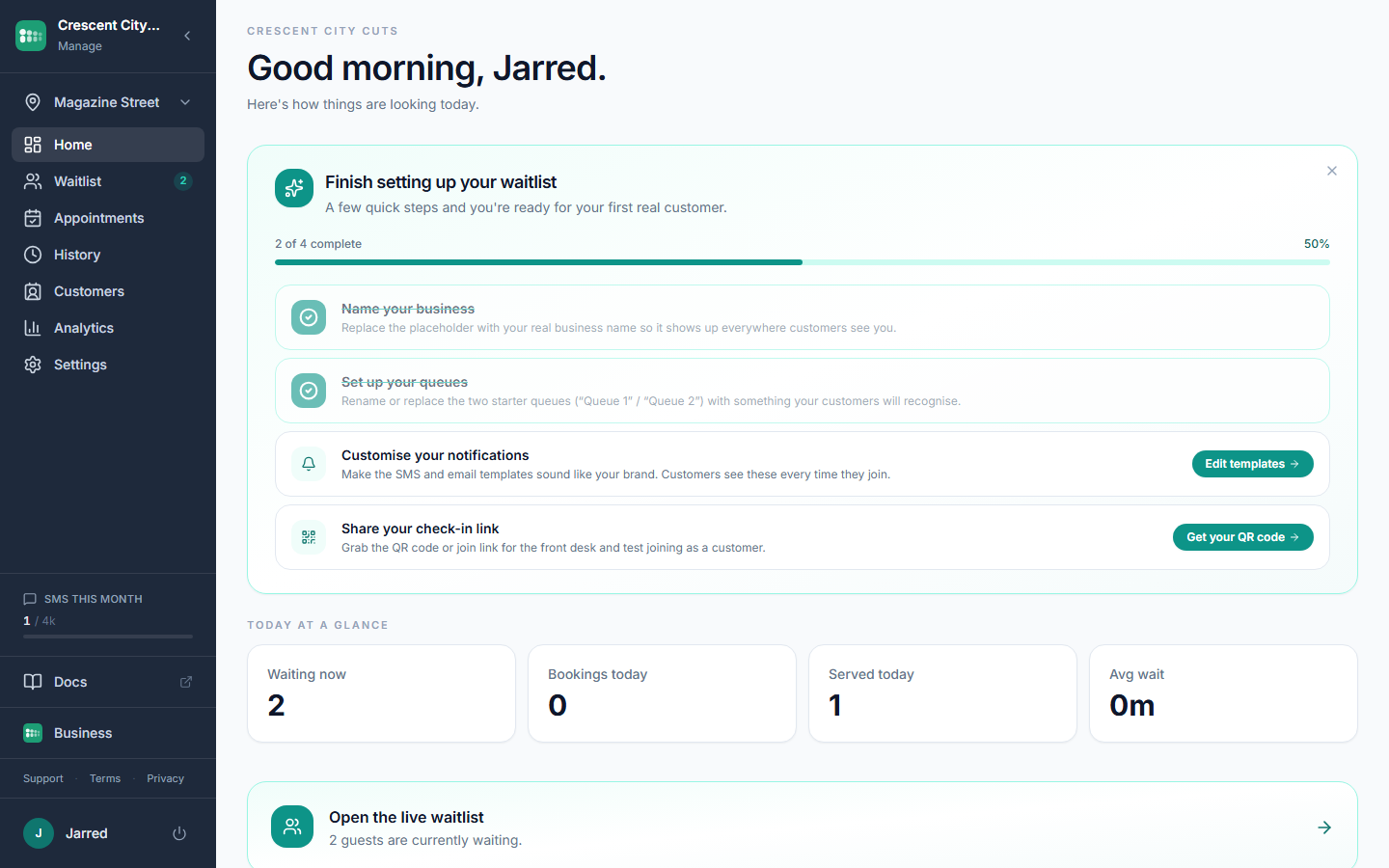
What happens when you sign up
The first time you sign in with your email and password, we set up a few things for you automatically:
- An Organization, which is your business account.
- A Member record for you, with the owner role.
- A default Location you can rename later.
- Two default Queues so you have something to play with on day one.
New accounts also start on a free trial of the Business plan, so every feature is unlocked while you explore. When the trial ends you move to the Free plan unless you upgrade.
You can edit or delete any of these from Settings once you're in.
Not sure what the free plan covers before you set anything up? The free waitlist app page lists exactly what Free includes and what the paid plans add.
The core pieces
It helps to know the vocabulary before you start clicking around:
- Location: a physical site (a store, clinic, or branch). You can have more than one.
- Queue: a single line at a location, like "Walk-ins" or "Service bay".
- Service (optional): a specific reason someone is in line, with an estimated time.
- Waitlist: the live view at / where you call, serve, and complete customers.
How customers join a queue
There are three ways to get people into your queue:
- Widget on your website (a small floating button customers tap to join).
- Kiosk on a tablet at your counter, at
/kiosk/:locationId. - QR code printed at your counter that opens the self check-in page on the customer's own phone, where they can join, watch their place in line, and leave the queue if their plans change.
Suggested first 15 minutes
- Open Settings → Profile and set your Business Name, Industry, and Timezone.
- Review the default Location under Settings → Locations.
- Rename or create a queue under Settings → Queues.
- Add yourself to the queue from the kiosk URL to see the full flow.
Common problems
- I don't see any queues. Check Settings → Queues. If the list is empty, the default queues may have been deleted. Create a new one.
- I signed in but nothing is set up. Refresh the page once. Auto-setup runs on first sign-in and needs a moment.
- The wrong email shows on my profile. Profile email is the email you signed up with and is read-only here. Contact support to change it.
- I want multiple businesses in one account. One organization per login. Use a separate email for a second business.